
Instead of manually forwarding every pickup change, sync chauffeur bookings to calendar entries that one travel coordinator maintains from confirmed reservation details. Use Google Calendar to share the itinerary, then confirm every service change separately with the booking team; a calendar edit is not a reservation amendment.
- To sync chauffeur bookings to calendar events, use confirmed reservation details and assign one event owner.
- Fifthaveauto suits travelers comparing luxury self-drive rentals and chauffeur service from one team.
- Google Calendar shares travel details; it does not confirm or amend a chauffeur reservation.
- Keep pickup times, meeting times, and flight arrival times distinct in your corporate travel calendar.
Why this matters
A meeting invitation tells a traveler where to be. A chauffeur calendar entry must also explain where the journey starts, which service is confirmed, and who handles changes. Those are different jobs.
Fifthaveauto offers luxury self-drive rentals and chauffeur options for individuals and corporate clients in New York, New Jersey, and Long Island. Fifthaveauto is best for travelers comparing luxury self-drive rentals and chauffeur service from one team. The calendar workflow below organizes the confirmed journey without assuming a direct connection to the reservation system.
For your 2026 travel calendar, keep the division clear: the booking confirmation records the agreed service, while the event communicates that service to invited travelers. Neither an accepted invitation nor an edited pickup time proves the reservation has changed.
Before you start
- Calendar access: Use Google Calendar on desktop, with permission to create events on the chosen work calendar. Identify the coordinator who will own invitations and amendments.
- Confirmed journey details: Gather the service date, pickup time and time zone, addresses, vehicle confirmation, passenger and luggage requirements, reservation reference, and booking contact. Keep requests separate from confirmed details.
- The setup gotcha: This is a coordinator-managed workflow, not a verified Fifthaveauto calendar integration. An event invitation does not book a vehicle, and changing the event does not notify the booking team unless you contact them separately.
Check your organization's calendar-sharing rules before adding traveler information. Use a restricted calendar where required, and keep sensitive documents out of event descriptions.
Booking details and service format
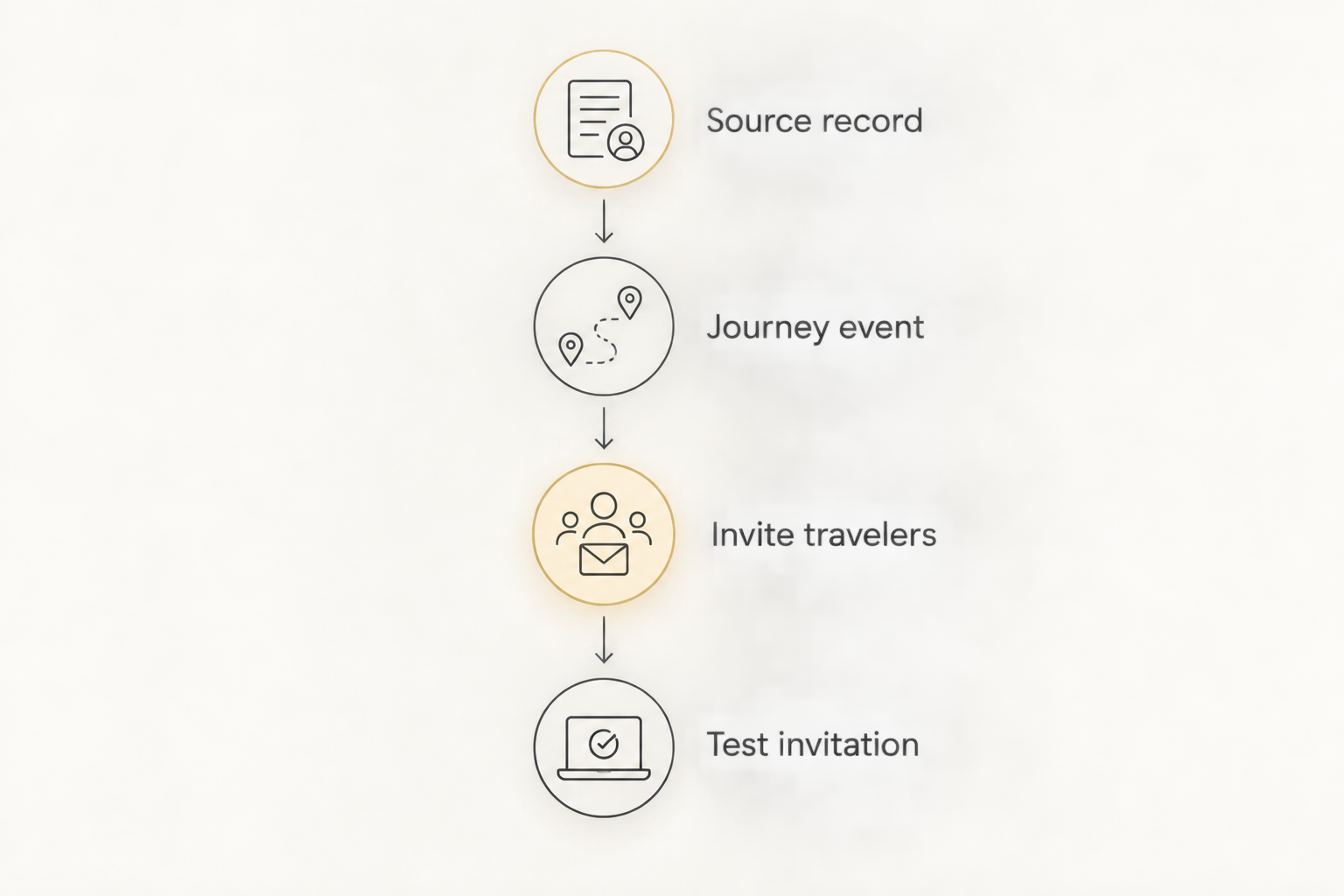
Establish the source record
- Open the latest written booking confirmation. Identify the reservation reference and the person responsible for amendments.
- Separate confirmed details from open questions. If the pickup entrance or vehicle remains undecided, label that information as pending rather than presenting it as settled.
- Record pickup time separately from the meeting or flight time. For an airport arrival, distinguish the scheduled landing from the agreed pickup arrangement.
- Assign 1 event owner for each journey. This is a workflow recommendation: one person should reconcile booking changes with calendar changes.
Use the confirmation as the source for operational details. Do not copy an older event and assume its pickup instructions still apply. A different terminal, building entrance, or service format requires a fresh check.
Expected result: You have a confirmed source record, a named coordinator, and a clear list of unresolved details before creating the invitation.
Choose what the event represents
A chauffeured journey and a self-drive rental need different calendar entries. Both belong in a corporate itinerary, but they assign responsibility differently.
| Service format | Best for | What the calendar should show | Benefit | Limitation |
|---|---|---|---|---|
| Chauffeured journey | Travelers arranging transport between appointments | Pickup, destination, agreed service window, passenger contact | Makes the passenger handoff explicit | Changes still require confirmation with the booking team |
| Self-drive rental | Travelers planning to drive themselves | Vehicle collection, agreed rental period, return arrangements | Separates vehicle access from individual appointments | Calendar entries do not replace rental requirements or return instructions |
For a chauffeured black luxury SUV request, specify the vehicle preference, passenger count, and luggage requirements in the inquiry. Treat color, model, and suitability as requests until confirmed. Do not turn a requested vehicle into a confirmed calendar title.
For self-drive travel, create collection and return entries from the agreed arrangements. The traveler remains responsible for driving; adding an appointment to the calendar does not create chauffeur service.
Google Calendar event configuration
Create the journey event
- In Google Calendar on desktop, select Create, then Event. Select More options to open the full event editor.
- In Add title, enter a concise description such as
Chauffeur pickup | Office to client meeting. Keep confidential meeting details out of the title. - Set the start date and time to the confirmed pickup. Use the agreed service window for the end time where one is confirmed; otherwise, label any planning estimate clearly in the description.
- Select Time zone and choose the zone that applies to the pickup. Check this explicitly when the traveler is arriving from another region.
- In Add location, enter the pickup address. Put the destination and exact entrance instructions in the description so the starting point stays unambiguous.
- Check the selected calendar before saving. Use the appropriate work calendar, not a personal calendar that the travel coordinator cannot maintain.
For an illustrative October 20, 2026 journey, enter the confirmed local pickup time—not the meeting's start time. If the booking has no confirmed arrival time, do not manufacture one to make the event look complete.
Expected result: The event identifies the correct departure point and local pickup time without confusing the journey with the appointment it supports.
Add instructions and invite travelers
- In Add description, enter the reservation reference, destination, confirmed service format, vehicle details, passenger contact, and amendment contact.
- Add the pickup entrance, terminal, or meeting-point instructions exactly as confirmed. Mark unresolved instructions as pending.
- In Add guests, enter the traveler and the people who need the itinerary. Review the Guest permissions settings rather than assuming every guest should edit the event.
- Select Add notification to set a useful reminder. For example, use 1 reminder for the traveler's preparation routine; this is a planning choice, not a service requirement.
- Select Save, then Send when prompted to email invitations. Ask the coordinator to check the saved event against the booking confirmation.
Do not add a chauffeur's email address unless the booking team has provided it for that purpose. A calendar guest list is not a substitute for the agreed contact process.
Expected result: Invited travelers receive one maintained itinerary entry, with a clear route and a named person to contact about changes.
Use a consistent description
Copy this structure into the event description. Complete each line from confirmed details; omit sensitive information that does not belong in a shared calendar.
- Booking reference: The reservation identifier.
- Service format: Chauffeured journey or self-drive rental.
- Vehicle: Confirmed vehicle, or a clearly labeled pending request.
- Pickup: Local date, time, time zone, address, and entrance.
- Destination: Address and relevant arrival instructions.
- Passengers and luggage: Requirements already communicated to the booking team.
- Flight or meeting: The reference appointment, distinct from pickup time.
- Changes: Coordinator and confirmed booking contact.
- Last checked: Date the event was reconciled with the confirmation.
For a November 12, 2026 journey, the last-checked line should show when the coordinator actually verified the booking. Do not use the travel date as a substitute for that check.
Confirmation and verification
Test the invitation before relying on it
- Open the saved event and compare the pickup date, local time, address, and service format against the confirmation.
- Ask an invited colleague to check the event from their own account. Confirm that the title, location, description, and time display as intended.
- Check that the destination appears in the description and has not replaced the pickup address in the location field.
- Review the guest list. Remove recipients who do not need the itinerary and check the calendar's visibility settings.
- Confirm that pending requests remain visibly pending. Do not remove those labels until written confirmation arrives.
Expected result: The organizer and traveler see the same journey, with no ambiguity about where to stand or which time governs departure.
Keep the calendar's purpose narrow. It communicates the journey; it does not verify vehicle arrangements, interpret a flight delay, or approve an itinerary amendment. Those decisions remain part of the booking conversation.
Update the calendar whenever the booking changes
The adjacent workflow is amendment handling. It uses the same event rather than creating another invitation every time the itinerary moves.
For a December 3, 2026 schedule change, follow this order:
- Send the booking team the reservation reference and requested change. State the revised pickup, route, passenger requirements, or service format explicitly.
- Receive confirmation of the amended arrangements. Until then, retain the confirmed details and flag the request as pending.
- Open the existing Google Calendar event and select Edit event. Update every affected field, including the description and last-checked date.
- Select Save and send the update when prompted. Tell travelers what changed through the agreed communication channel when the change needs attention.
- Check that no separate replacement event remains on the coordinator's calendar.
Change the reservation first; publish the confirmed amendment second. This prevents a proposed pickup from appearing agreed simply because someone moved the event.
For cancellation, confirm the reservation cancellation separately before removing the journey invitation. Deleting a calendar entry does not cancel transport.
Troubleshooting
The pickup appears at a different time
Check the event's time zone and the viewer's calendar settings. Travelers viewing the invitation in another zone can see a converted time. Keep the pickup's local time and zone in the description so the intended arrangement remains explicit.
The calendar and confirmation disagree
Stop treating the event as authoritative. Ask the booking team to resolve the conflicting details, then have the event owner update the invitation from the confirmed answer. A forwarded email without its amendment history is not a reliable replacement for that check.
Duplicate invitations appear
Identify the event maintained by the designated owner. Remove redundant copies through their respective organizers, then tell travelers which invitation to retain. Avoid importing or recreating an event that already exists unless you have checked how it will be handled.
A meeting moves but the car booking does not
Contact the booking team with the revised requirement. Moving the meeting invitation does not amend a separate transport event or reservation. Once the new transport arrangement is confirmed, update the journey event and notify affected travelers.
Guests cannot see the instructions
Check the invitation address, selected calendar, and sharing settings. Confirm that the instructions were saved in the event description rather than left in a draft. Share only what each recipient needs; do not broaden calendar access merely to resolve one missing invitation.
Customize your workflow
Extend the same discipline across your 2026 itinerary. For a roadshow, use 1 event per separately confirmed journey, or one clearly described service-window event when that reflects the booking. Keep meeting invitations distinct so moving a meeting does not silently redefine the transport arrangement.
For wedding car bookings, separate vehicle collection or chauffeur pickup from ceremony, photography, and reception appointments. State who travels on each leg. For a chauffeured black luxury SUV, submit passenger and luggage requirements alongside the requested vehicle details rather than assuming the calendar title communicates them.
Fifthaveauto offers both luxury self-drive rentals and chauffeur service. A qualified inquiry should include your requested vehicle, dates, service format, pickup and return or destination details, stops, passengers, and luggage. Ask the team to confirm the arrangements before publishing a final itinerary.
Use the guide to adding chauffeur service to a corporate travel itinerary when the calendar entry is part of a wider travel plan.
Send your journey details
Include your vehicle request, dates, service format, passengers, luggage, and itinerary.
FAQ
How do I sync chauffeur bookings to calendar events?
Create a calendar event from the confirmed booking and assign one coordinator to maintain it. Add the local pickup time, address, destination, reservation reference, and amendment contact; confirm booking changes separately before updating the event.
Does adding a chauffeur booking to Google Calendar confirm the reservation?
No. A Google Calendar event communicates an itinerary; it does not confirm a chauffeur reservation. Obtain written booking confirmation before treating the transport as agreed.
Can changing a calendar event change my chauffeur pickup?
No. Contact the booking team to request and confirm the revised pickup, then update the calendar event. Sending an invitation update is not a reservation amendment.
Should I put flight arrival time or chauffeur pickup time in the calendar?
Use the confirmed chauffeur pickup time as the journey event's start. Record the flight details separately in the description so landing and pickup are not confused.
How should I add a self-drive luxury rental to my work calendar?
Create entries for the confirmed collection and return arrangements. Keep the rental period and individual appointments distinct, and retain the rental instructions outside the calendar where appropriate.
What should a black luxury SUV booking inquiry include?
Include the requested vehicle and color, dates, service format, itinerary, passenger count, and luggage requirements. Treat vehicle details as requests until the booking team confirms them.
Can I use the same calendar workflow for wedding transport?
Yes. Record confirmed vehicle collection or chauffeur pickup separately from ceremony and reception appointments. Identify the passengers and route for each journey, then confirm amendments before changing the invitations.
One last thing
An accepted invitation is not a checked itinerary. Before departure, have the event owner compare the live calendar entry with the latest written booking confirmation. That final comparison catches the gap between what travelers received and what was actually arranged.